

BabylonJS is a comprehensive JavaScript library for 3D graphics in the web browser. Requiring just a recent browser, it allows shipping 3D graphics applications to a wide range of users and their platforms easily. You can already make quick experiments with BabylonJS from within the browser at the Playground or by including the compiled library in your HTML document, see the documentation. But for more serious development TypeScript in combination with Vite offers a better setup. You get compile-time checking, cleaner code, and optimized builds for shipping your application.
Unfortunately, the JavaScript and front-end development landscape can be rather confusing. There is a plethora of languages and dialects (e.g. evolving ECMAScript standards, TypeScript, or CoffeeScript), as well as development tools (e.g. NPM, Bower, webpack, or Vite). As a beginning front-end developer or someone coming from another language ecosystem, the front-end tooling can be overwhelming to choose from. It is also not very obvious how all these tools connect.
This post aims to provide an easy-to-start-with minimal base template for writing BabylonJS applications in TypeScript and building them using Vite. For this, we will only need NPM—the Node Package Manager—installed. At the end, we will have a rotating textured cube. Our template is based on this guide and this render loop timing control.
Installing dependencies
First, we create a project directory and use NPM to install BabylonJS, and our development tools TypeScript, and Vite.
mkdir babylon-start
cd babylon-start
npm install --save @babylonjs/core
npm install --save-dev typescript vite
The @babylonjs package scope provides the ES6 (ECMAScript 2015) module versions of the library, which are now widely supported and preferred over the older ES5 babylonjs/core build.
Configuring the TypeScript compiler
Before we can compile any code, we need to configure the TypeScript compiler. The tsconfig.json` file tells the compiler where to find our source code, which libraries we use, and how to output the transpiled JavaScript.
|
|
The HTML base document
To serve our app, we need an HTML document to display in a web browser—for example, index.html shown below. It must contain a canvas element for BabylonJS to render into (line 26), and it needs to load our application code as well (line 28). We additionally ensure the app runs at the full window size (lines 5–21).
|
|
The BabylonJS code
Now we come to our actual BabylonJS application code.
We first create the src/ subdirectory and save the code below as src/app.ts.
With a programming background, the code is fairly straightforward, and the many comment lines provide additional explanation.
Pay particular attention to the rendering loop, which implements fixed‑timestep logic updates combined with variable‑frame‑rate rendering.
|
|
A crate texture map
For the rotating crate to be textured, download the texture map below and place it in the public/ subdirectory.
This is where all static assets are stored and packaged during bundling.
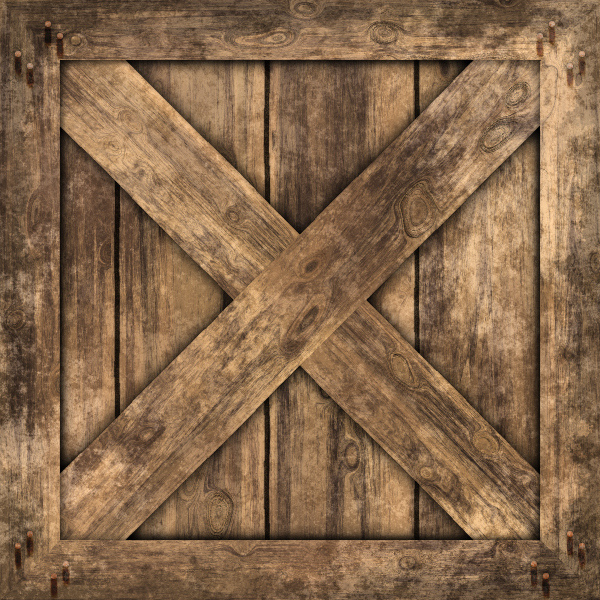
Wooden crate texture (by Filter Forge— Attribution 2.0 Generic (CC BY 2.0) license)
Final directory structure
Finally, our project directory should look as follows.
The node_modules/ directory and the package*.json files were created automatically when we installed our dependencies.
All the other files we created manually in the previous steps.
.
├── index.html
├── node_modules
├── package.json
├── package-lock.json
├── public
│   └── crate-texture.jpg
├── src
│   └── app.ts
└── tsconfig.json
Compiling and deploying
We can now run and package our BabylonJS application.
Using the TypeScript compiler tsc we compile our code and check it for errors.
npx tsc
When the code compiles without problems, we run and view our application using Vite. Fortunately, Vite works out of the box and no further configuration is necessary. We just run
npx vite
to start a development web server to view our application. To package our application we run
npx vite build
This bundles our application together with all of its dependencies into the dist/ subdirectory.
For deployment, we simply upload this directory to a public web server in order to make it accessible.
In Action
This is how our application finally looks like in action inside a smaller render canvas.
Hopefully, this walkthrough will help you get started building impressive 3D graphics for the web. Happy coding!